Manage Wallets and Settings
Switch Between Wallets
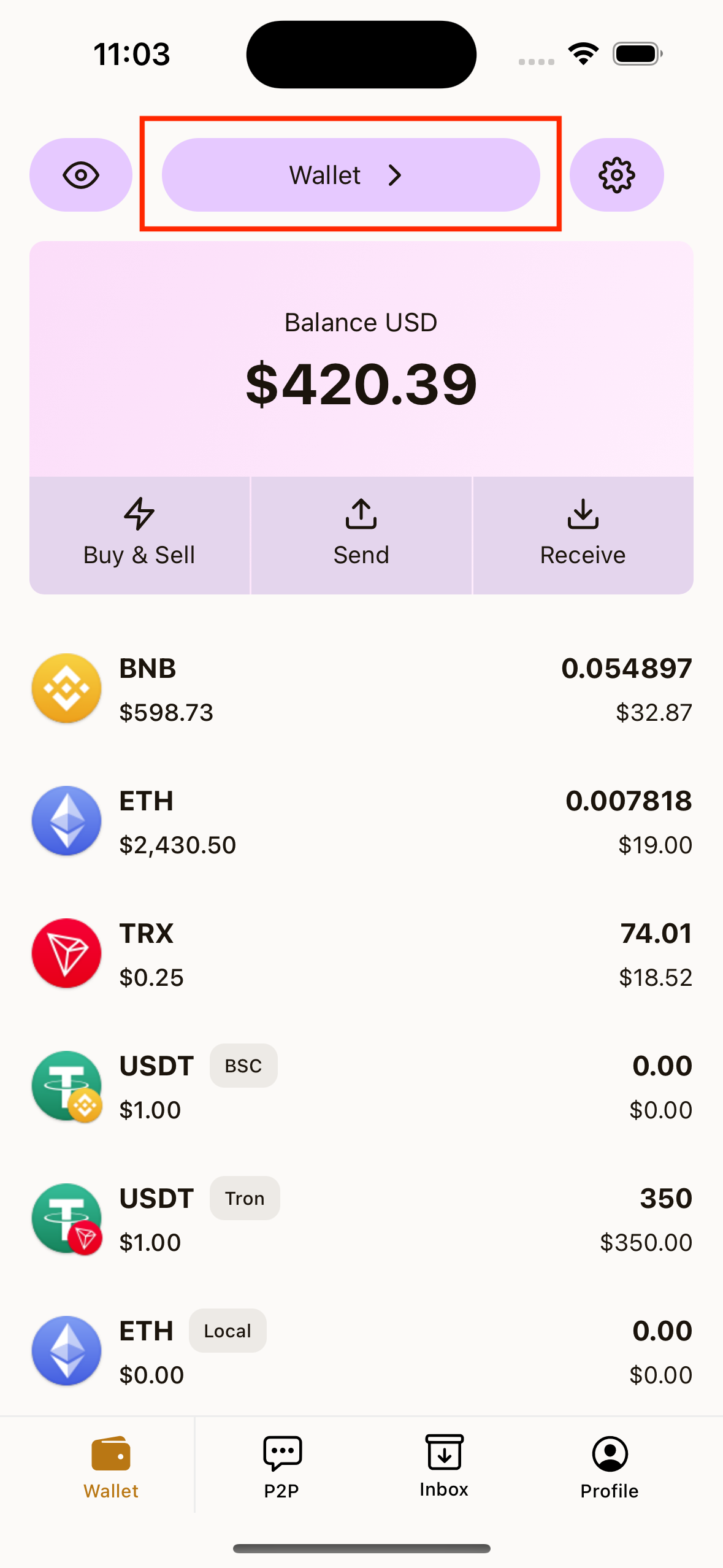
- On Wallet home, tap your wallet name at the top center.
- Tap a wallet from the list.
- Choose Select Wallet.
Add Another Wallet
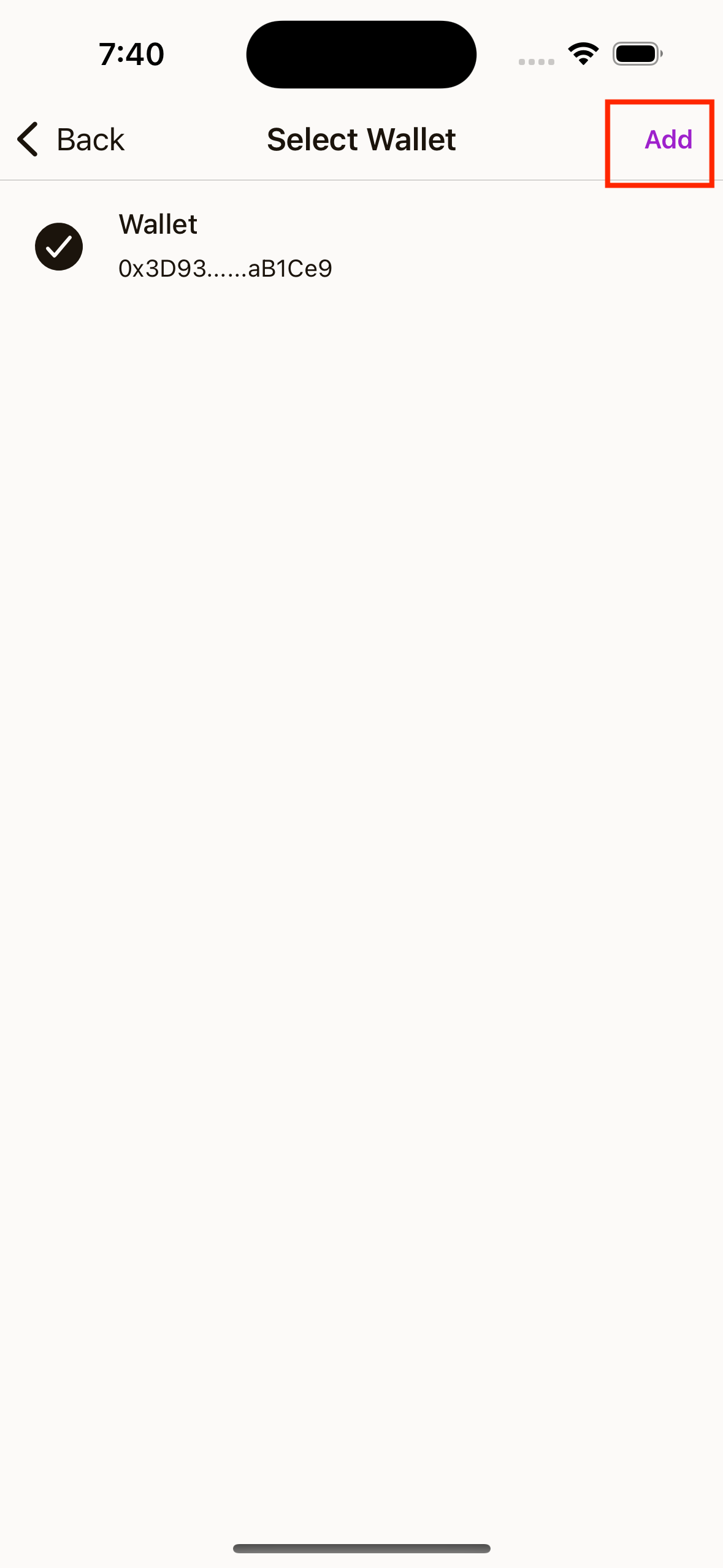
- Open wallet selection screen.
- Tap Add in the top-right corner.
- Choose Create New Wallet or Import Existing Wallet.
- Complete setup flow.
Rename a Wallet
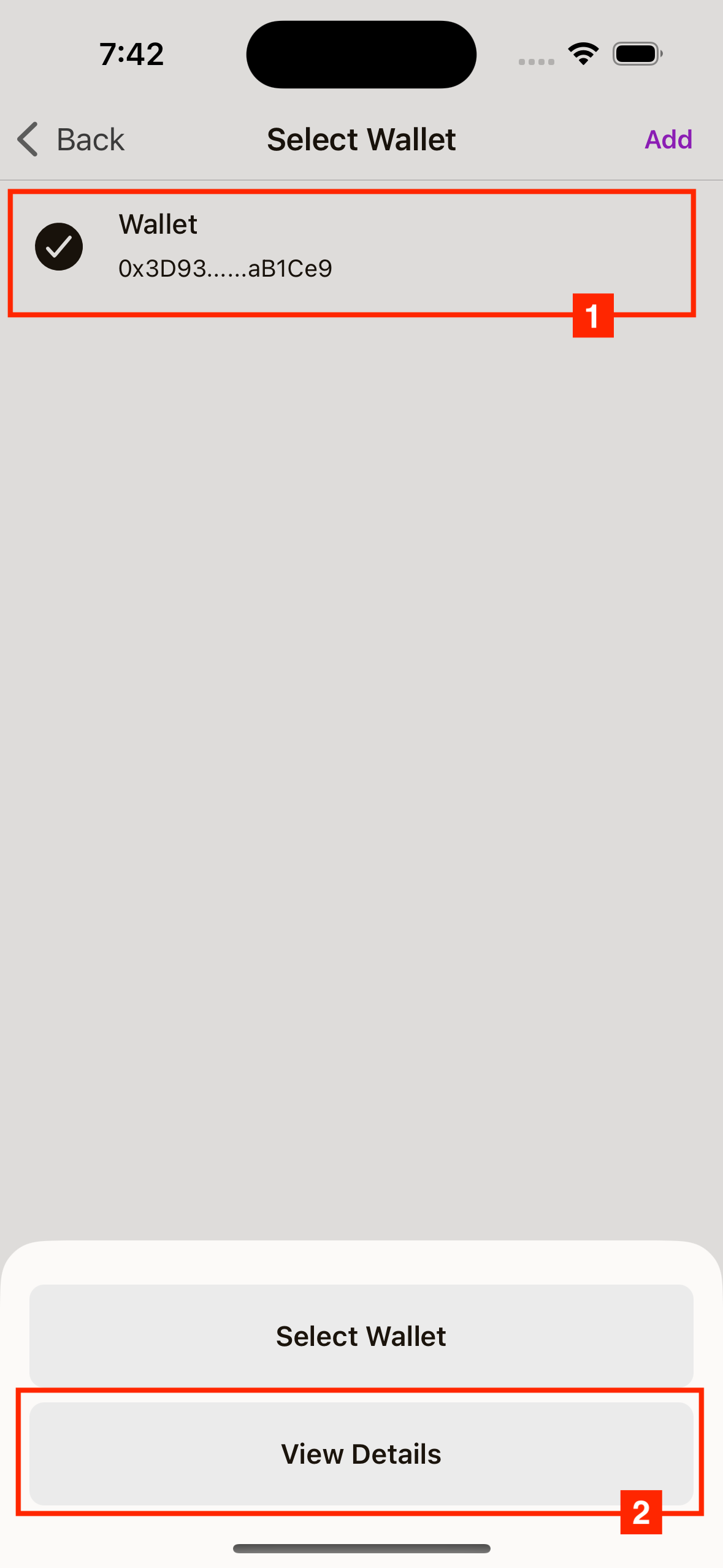
- Open wallet selection.
- Tap a wallet, then choose View Details.
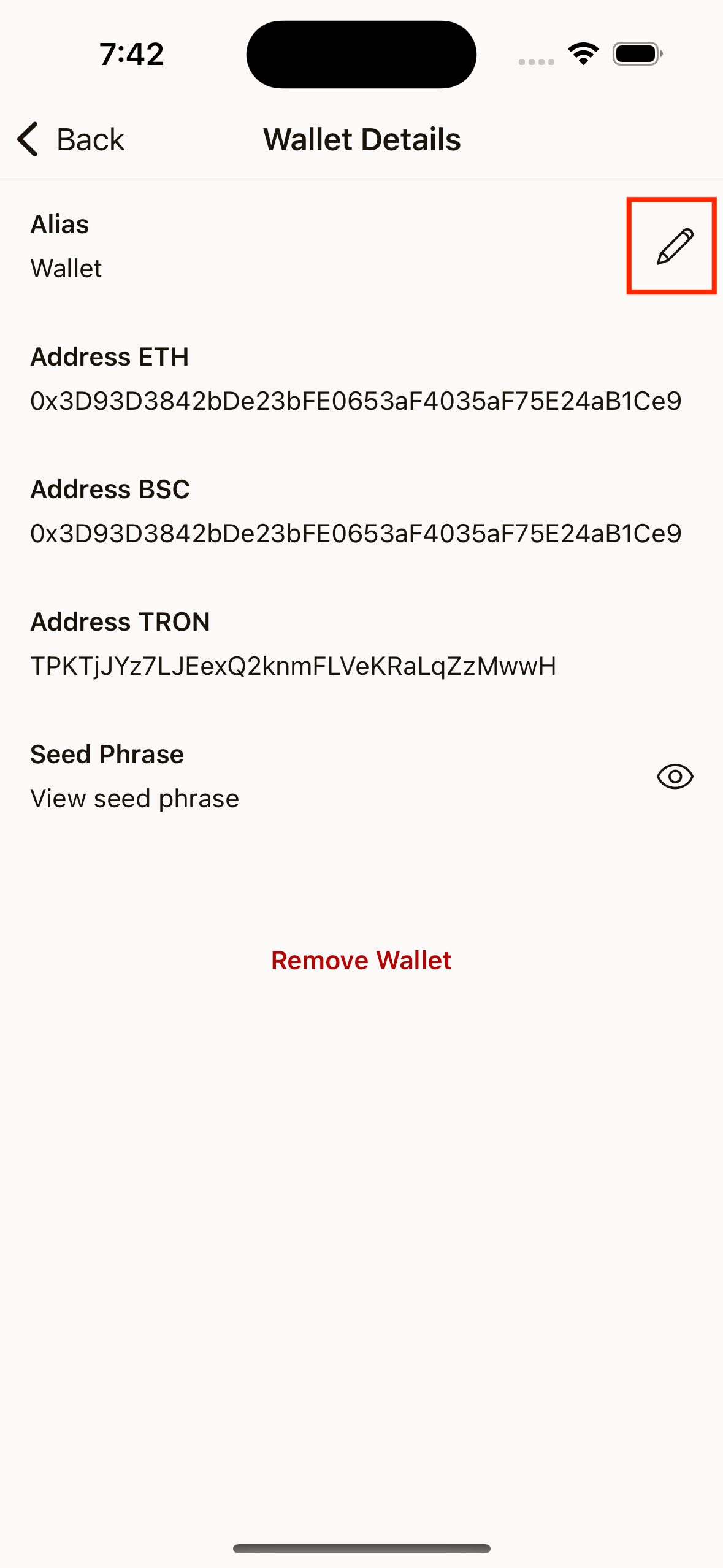
- In details, tap the edit icon on Alias.
- Enter a new name and save.
View Wallet Details
In wallet details, you can:
- View ETH, BSC, and TRON addresses
- Tap any address to show QR and copy it
- Open seed phrase/private key view (PIN required)
Wallet Settings
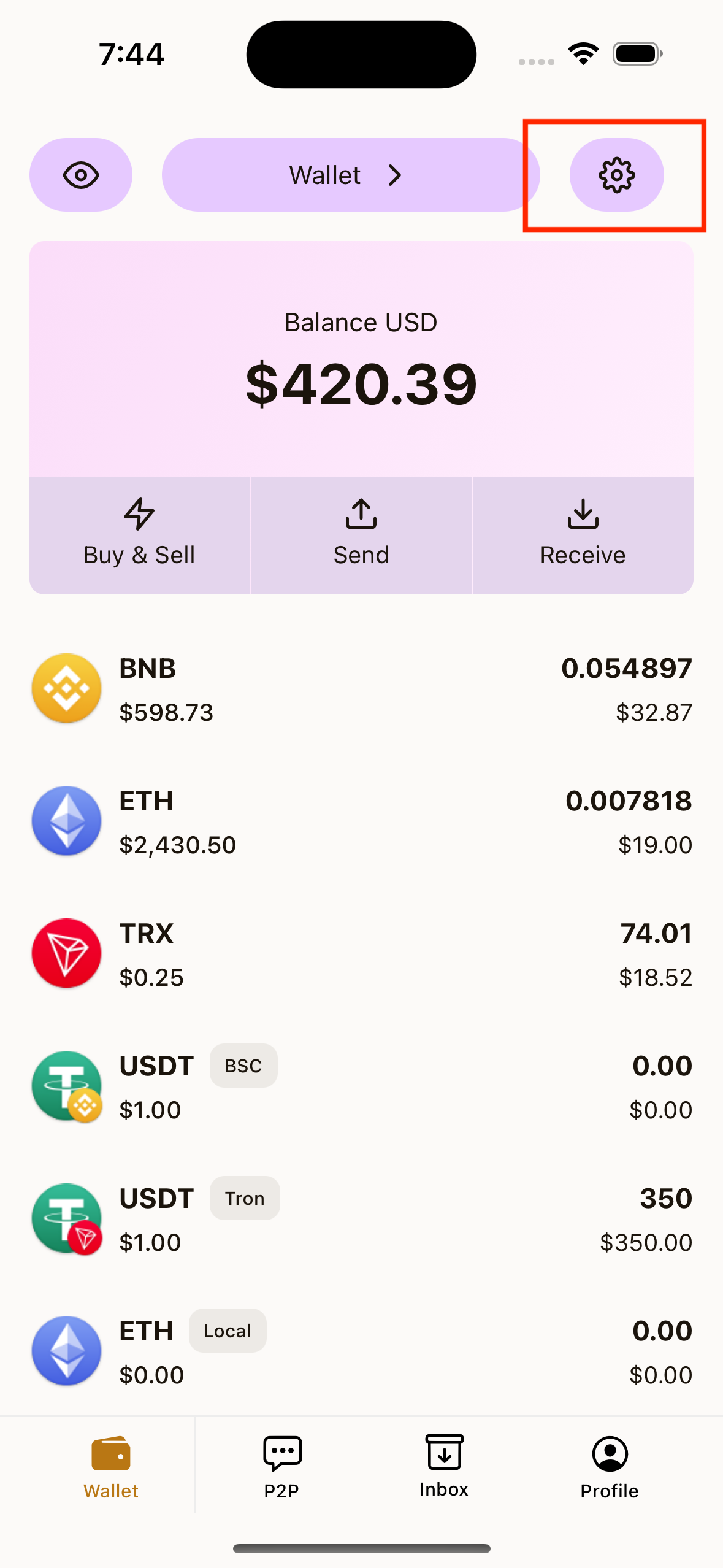
Open Settings from Wallet home to:
- Change Fiat Currency (for balance display)
- Show/hide specific tokens from your Wallet list
Hide or Show Total Balance
Tap the eye icon on Wallet home:
- Eye open: balances visible
- Eye closed: balances hidden
Remove a Wallet
- Open wallet details.
- Tap Remove Wallet.
- Confirm removal.
Important:
- If you remove all wallets, Wallet setup starts again.
- Make sure you have seed phrase/private key backup before removal.