P2P Chat, Shortcuts, and Statuses
This page explains how to use the transaction chat and related shortcuts.
Send Messages in Transaction Chat
Inside a transaction chat, you can:
- Type and send text messages
- Long press a message to copy it
- Delete your own sent message
Send Attachments
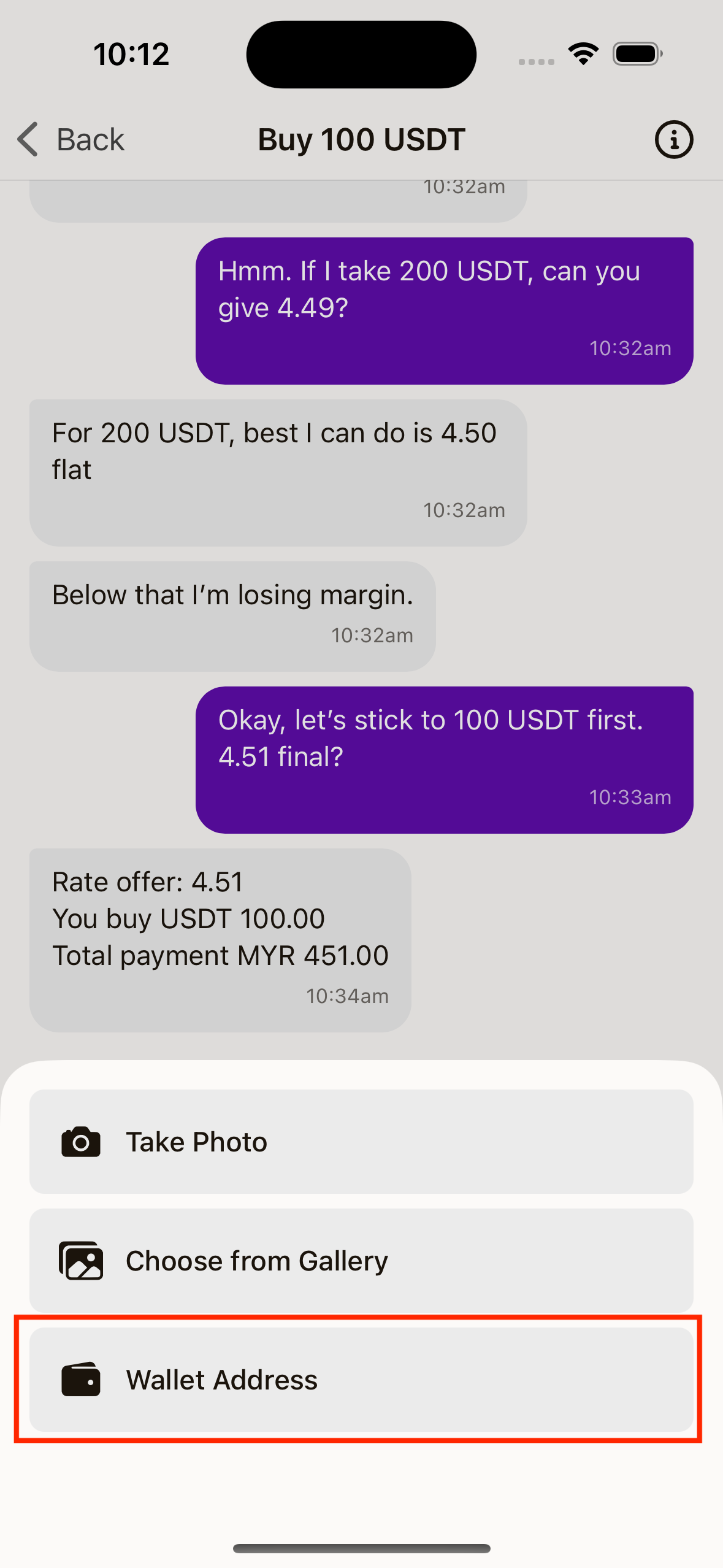
Tap the + button beside chat input to open attachment options.
You can:
- Take photo
- Choose image from gallery
- Insert your saved wallet address shortcut
Rate Offer Actions
When a rate offer is sent to you, chat input is replaced by action buttons:
Accept RateDecline
Choose one to continue.
Chat Notices You May See
Depending on status, chat may show:
This transaction has been cancelledTransaction has been marked as completed
When transaction is completed or cancelled, chat input is disabled.
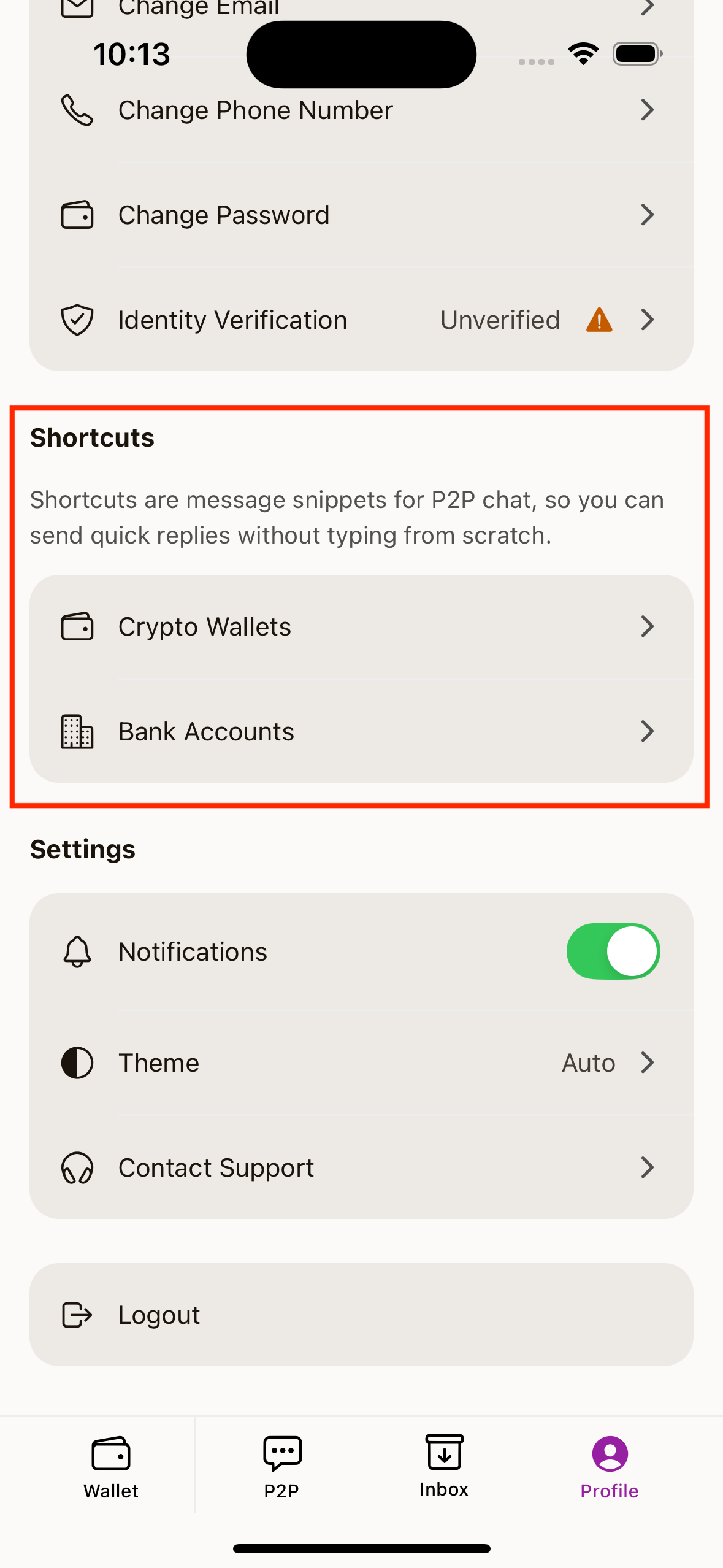
Add Wallet Shortcuts for Faster Chat
To prepare wallet shortcuts:
- Go to
Profile - Open
Shortcuts->Crypto Wallets - Tap
+to add wallet address - (Optional) add alias and exchange name
- Save
Then in P2P chat, tap + -> Wallet Address to send it quickly.
Manage Shortcut Lists (Wallets and Banks)
From Profile -> Shortcuts, you can:
- Add, edit, and delete crypto wallets
- Add, edit, and delete bank accounts
These records help you keep reusable payment details organized while trading.